Phone storage full? Here’s how to free up storage on Android in 10 simple steps, from clearing WhatsApp media and app cache to Google Photos and Files by Google, without losing anything important
“Storage almost full” is one of the most annoying messages on any phone. Apps stop updating, the camera won’t save photos, and everything slows down. The good news is that most phones are full of things you don’t need: forwarded WhatsApp videos, duplicate photos, old downloads and app cache. In this guide, we show you how to free up storage on Android step by step, using tools already on your phone, so you can recover several GB in about 15 minutes.
Note: menu names vary slightly between brands such as Samsung, Xiaomi, Vivo, OnePlus and Motorola, and between Android versions. If you can’t find an option, use the search bar in Settings.
Quick Answer
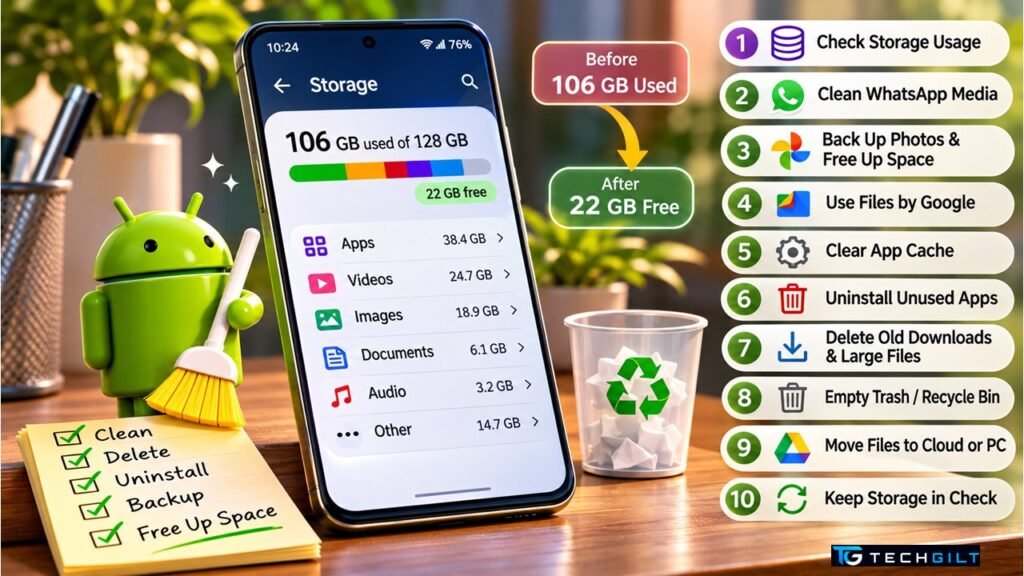
To free up storage on Android: first check what’s using space in Settings → Storage. Then clean WhatsApp media (WhatsApp → Settings → Storage and data → Manage storage), back up photos and videos to Google Photos and use its “Free up space” option, clear app cache, delete old downloads and large files with the Files by Google app, and uninstall apps you don’t use. Finally, empty the trash or recycle bin in your gallery and file manager, because deleted files often stay there for 30 days.
Step 1: Check What’s Using Your Storage
Before you free up storage, find out what’s taking up space.
- Open Settings → Storage (on Samsung: Settings → Battery and device care → Storage).
- You’ll see a breakdown by category: Apps, Images, Videos, Audio, Documents, System and others.
- Tap a category to see the biggest items.
This tells you where to focus. For most people in India, the biggest culprits are WhatsApp media and photos and videos.
Step 2: Clean Up WhatsApp Storage
The quickest way to free up storage is often WhatsApp, which can quietly use 10 GB or more, mostly from forwarded videos and images in groups.
- Open WhatsApp → Settings → Storage and data → Manage storage.
- At the top, check files larger than 5 MB and forwarded many times. These are usually safe to delete.
- Open your largest chats (often groups), select the media you don’t need and tap Delete.
Stop it happening again: in Storage and data → Media auto-download, set photos, audio, videos and documents to download only on Wi-Fi or never, so you choose what to save. For more options, see WhatsApp’s official guide on how to free up storage on WhatsApp.
Step 3: Back Up Photos and Use “Free Up Space”
Photos and videos are usually the second-biggest space users, and Google Photos can free up storage safely.
- Open Google Photos and make sure backup is turned on, with your photos showing as backed up.
- Tap your profile picture → Free up space.
- Google Photos removes the device copies of photos and videos that are already backed up. They stay safe in your Google account. Google explains this in its Free up space on your device help page.
Keep in mind: free Google accounts come with 15 GB of storage shared across Gmail, Drive and Photos. If your Google storage is also full, review large videos in Google Photos before buying extra space.
Step 4: Use the Files by Google App
Files by Google (free on the Play Store, and pre-installed on many phones) suggests what to clean to free up storage.
- Open Files and tap Clean.
- Review the suggestions: junk files, duplicate files, large files, old screenshots, downloaded files and unused apps.
- Select what you don’t need and tap Delete or Move to trash.
Samsung phones have a similar tool in My Files → Analyse storage.
Step 5: Clear App Cache
Apps store temporary files called cache. Clearing cache is a safe way to free up storage without deleting your data or logins.
- Go to Settings → Apps and open a heavy app, such as Instagram, YouTube, Chrome or a shopping app.
- Tap Storage (or Storage and cache).
- Tap Clear cache.
Important: tap Clear cache, not Clear data or Clear storage. Clearing data resets the app, and you may lose downloads or need to log in again.
Step 6: Uninstall Apps You Don’t Use
Unused apps are one of the easiest ways to free up storage.
- Go to Settings → Apps and sort by size, if your phone offers it.
- Uninstall apps you haven’t used in months, such as old games, travel apps or duplicate shopping apps.
Tip: some Android phones can archive unused apps. This removes most of the app but keeps your data, so you can restore it later.
Step 7: Delete Old Downloads and Large Files
Your Downloads folder often holds old PDFs, APK files, videos and WhatsApp documents.
- Open Files → Downloads.
- Sort by size and delete files you no longer need.
- Also check offline downloads in apps such as YouTube, Netflix, Prime Video and Spotify, which can use several GB.
Step 8: Empty the Trash and Recycle Bin
Many phones keep deleted files for 30 days before removing them permanently.
- Google Photos: Library → Bin → Empty bin
- Gallery app (Samsung, Xiaomi and others): look for Recycle bin or Recently deleted
- Files by Google: menu → Trash
Check this after cleaning, or you won’t actually free up storage.
Step 9: Move Files to the Cloud or a Computer
For files you want to keep but don’t need on your phone:
- Upload documents to Google Drive.
- Copy old videos and photos to a laptop or an external drive using a USB cable.
- If your phone has a microSD card slot, move photos and videos to the card.
Step 10: Keep Your Phone Updated and Restart It
- Install system updates (Settings → Software update). They often fix storage bugs.
- Restart your phone occasionally to clear temporary system files.
How Much Storage Do You Need?
If you clean regularly but still run out, your phone may simply be too small for how you use it. In 2026, 128 GB is the practical minimum for most users, and 256 GB is better if you shoot lots of videos or play games. Keep at least 10–15% of storage free so your phone runs smoothly.
Google Play System Update
Best Phones Under ₹20,000
Frequently Asked Questions
How do I free up storage on Android without deleting photos?
Back up your photos to Google Photos and use its “Free up space” option. It removes only the copies on your phone that are already safely backed up.
Is it safe to clear cache on Android?
Yes. Clearing an app’s cache removes temporary files without deleting your data or logging you out. Just avoid “Clear data” or “Clear storage” unless you want to reset the app.
Why can’t I free up storage even after deleting files?
Deleted files often go to a trash or recycle bin for 30 days. Empty the bin in Google Photos, your Gallery app and your file manager to free the space.
How do I reduce WhatsApp storage?
Go to WhatsApp → Settings → Storage and data → Manage storage, delete large and forwarded files, and turn off auto-download for media.
What is “System” storage on Android, and can I delete it?
System storage holds Android itself and essential files, so you can’t delete it. Keeping your phone updated and restarting it occasionally helps keep it in check.
Conclusion
You don’t need a new phone to fix a full one. To free up storage on Android, start by checking what’s using space, then clean WhatsApp media, back up photos with Google Photos, clear app cache, delete old downloads with Files by Google, uninstall unused apps and empty the trash. A 15-minute session to free up storage every month can keep your phone fast and stop that “storage full” warning from coming back.
My take: I believe that managing smartphone storage should be a habit for every Android user, long before they find themselves overwhelmed by storage warnings. Many people assume they need a new phone once their storage fills up, but a simple cleanup is often all that’s required. WhatsApp media, duplicate photos, old downloads and unused apps can quietly consume valuable space. To make storage management easier, I recommend using Files by Google or Google Photos.
However, before deleting any files, users should always verify that important photos and documents have been backed up. Regular maintenance keeps a smartphone running smoothly and efficiently. I would like to conclude by saying: “A faster phone doesn’t always require an upgrade; sometimes, it simply needs a good cleanup.”
Over to You
How much storage did you free up using these steps? Share your result, or your own storage-saving tip, in the comments below.