How to update Google Play system, Google Play services and the Play Store on your Android phone, and what’s new in Google’s October 2026 updates
Most Android users install app updates without thinking, but many don’t know that their phone also gets important updates from Google through Google Play, separate from the big Android version upgrades from Samsung, Xiaomi, OnePlus or other brands. These updates add security fixes and new features, and Google ships them every few weeks. In this guide, we explain how to install a Google Play system update, how to update Google Play services and the Play Store, and what’s new in October 2026.
Quick Answer
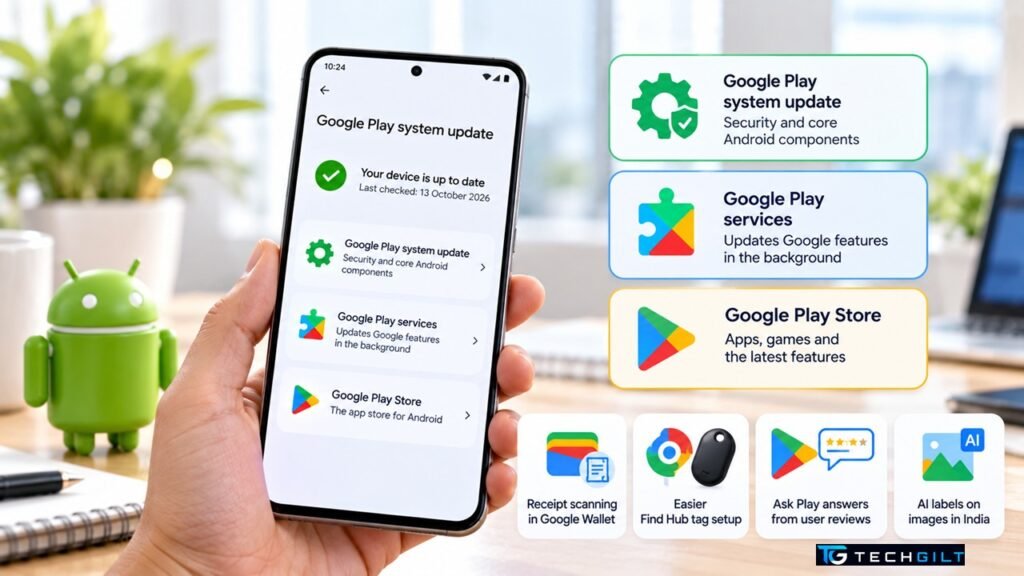
To install a Google Play system update, open Settings, search for “Google Play system update”, tap it, and then tap Check for update or Restart now if an update is ready. To update Google Play services, go to Settings → your profile picture → All services → Privacy & security → System services → Google Play services → Update. To update the Play Store, open the Play Store, tap your profile picture → Settings → About → Update Play Store. The October 2026 updates bring receipt scanning in Google Wallet, an easier Find Hub tag setup, Ask Play answers from user reviews, and AI labels on AI-generated images in India.
Three Different Google Updates, Explained
Google keeps three separate parts of your phone up to date. The names are similar, so it’s easy to mix them up.
| Update | What it does | How often |
|---|---|---|
| Google Play system update | Updates core Android parts, such as media, security and network components, without waiting for a full Android upgrade | Usually monthly |
| Google Play services | Runs Google features in the background, such as Wallet, Find Hub, location and sign-in | Almost every week |
| Google Play Store | The app store itself | Every few weeks |
Together, Google calls these Google System Updates. Your phone usually installs them automatically, but checking manually makes sure you get the latest fixes sooner.
How to Install a Google Play System Update
The exact menu depends on your phone brand and Android version, but these steps work on most phones:
- Open the Settings app.
- Tap the search bar at the top and type Google Play system update.
- Tap the result. On many phones, you’ll find it under Security & privacy → System & updates or About phone → Android version.
- Tap Check for update.
- If an update downloads, tap Restart now to finish installing it.
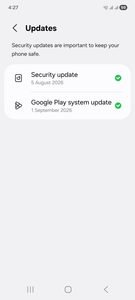
Tip: you’ll see the current Google Play system update date on this screen, for example “October 1, 2026”. If the date is several months old and no update is offered, your phone maker may not have released the newer modules for your model yet.
How to Update Google Play Services
According to Google’s Play Help page, here’s how to update Google Play services:
- Open Settings on your Android phone.
- Tap your profile picture, then tap All services.
- Under Privacy & security, tap System services.
- Tap Google Play services.
- Tap Update or Install.
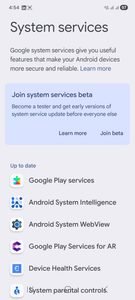
On the same System services screen, Google’s system services help page explains that you can check an Available updates section. Anything listed under Up to date doesn’t need action.
How to Update the Google Play Store
- Open the Google Play Store app.
- Tap your profile picture at the top right.
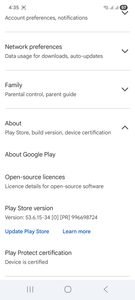
- Tap Settings, then About.
- Tap Update Play Store. If you see “Google Play Store is up to date”, you already have the latest version.
What’s New in the October 2026 Updates
Google lists the changes in its system services release notes, and 9to5Google has summarised the October highlights. These features are bundled with Google Play services and the Play Store rather than the Google Play system update itself, but they arrive the same way: automatically, in the background.
Google Wallet: receipt scanning and more
Google Play services version 26.40 (October 12) adds the option to scan receipts into Google Wallet. It also improves merchant names in transaction notifications and adds an in-app message center. Version 26.39 shows card art and payment network logos when you add a card.
Find Hub: easier tag setup
Version 26.39 (October 5) adds a new setup flow for tracker tags. You can set a category, rename the tag and turn on Left-Behind Reminders right away. You can also tap a tag with NFC to see its details or help find a lost one.
Play Store: Ask Play and review summaries
Play Store version 53.6 (October 12) upgrades Ask Play, which now answers your questions about an app with summarised insights and citations from user reviews. It also adds an AI Summary for trending Community Posts.
India: AI labels on AI-generated images
Play Store version 53.5 (October 5) brings an India-specific change: AI-generated images in India will now include an AI label, with some exceptions. This helps users spot images made by AI.
Note: Google rolls out these features gradually. If you don’t see one yet after updating, it may take a few days or weeks to reach your phone.
Why the Google Play System Update Matters
A Google Play system update is one of the easiest ways to stay safe, especially on phones that no longer get major Android upgrades. Because Google can update key Android components directly, your phone can receive important security and stability fixes without waiting for your phone maker. Keeping Google Play services and the Play Store current also makes sure apps such as Wallet, Find Hub and Google sign-in work properly.
Troubleshooting: Update Not Showing?
- Connect to Wi-Fi and make sure your phone has enough free storage.
- Restart your phone and check again.
- Clear the Play Store cache: Settings → Apps → Google Play Store → Storage → Clear cache.
- Wait a few days: Google releases updates in stages, so not every phone gets them on the same day.
Also read: How to Get Windows 11 26H2
Also read: Samsung One UI 9 India Update
Frequently Asked Questions
What is a Google Play system update?
It’s an update from Google that improves core parts of Android, such as security and media components, without needing a full Android version upgrade from your phone maker.
How do I check my Google Play system update version?
Open Settings, search for “Google Play system update”, and tap it. The current update date is shown on that screen.
Is a Google Play system update the same as an Android update?
No. An Android update, such as moving to a new Android version, comes from your phone maker. A Google Play system update comes directly from Google and updates individual parts of Android.
What’s new in the October 2026 Google updates?
Highlights include receipt scanning in Google Wallet, easier Find Hub tag setup, Ask Play review summaries in the Play Store, and AI labels on AI-generated images in India.
Is it safe to install Google Play updates?
Yes. They come directly from Google and include security fixes, so installing them is recommended.
Conclusion
Keeping your phone up to date isn’t only about big Android upgrades. A Google Play system update, along with regular Google Play services and Play Store updates, brings security fixes and new features straight from Google, often every week or month. The October 2026 updates add useful extras such as Wallet receipt scanning, simpler Find Hub tag setup, smarter Play Store answers and AI labels for images in India. It takes less than a minute to check, so it’s worth making it a regular habit.
My take: In my view, checking for a Google Play system update should become a regular habit, at least once a week, much like updating the apps we use every day. I particularly appreciate the introduction of AI labels for AI-generated images in India, as they can help users become more aware of the content they come across online. However, labels alone are not enough; we should also build the habit of verifying the source before trusting or sharing information. Features like receipt scanning in Google Wallet and smarter answers in the Play Store are certainly useful, but security and the responsible use of technology must always remain the top priority.
I would suggest checking for Google Play system updates, Google Play services and Play Store updates at regular intervals rather than waiting for a problem to appear. A secure digital life does not depend only on advanced technology; it also relies on the small, responsible habits we practise every day. I would conclude by saying: “Keep your phone updated, keep your information protected, and keep your judgment sharper than the technology you use.”
Over to You
Have you checked for a Google Play system update on your phone recently? Share your update date in the comments below.