Learn BigQuery SQL step by step with 10 simple queries you can run free in the BigQuery sandbox, from SELECT and WHERE to GROUP BY, HAVING and CASE
In our last BigQuery guide, you set up the free sandbox and ran your first query. Now it’s time to learn the language properly. BigQuery SQL is the skill behind most data analyst and data engineering jobs on Google Cloud, and the good news is that you only need a handful of commands to do most everyday work. In this tutorial, you’ll practise 10 BigQuery SQL queries on a free public dataset, each one building on the last, with a plain-English explanation of what every line does.
Quick Answer
To learn BigQuery SQL, start with these core commands: SELECT (choose columns), WHERE (filter rows), ORDER BY (sort), LIMIT (shorten results), SUM and COUNT (calculate), GROUP BY (summarise), HAVING (filter summaries), LIKE (match patterns) and CASE (create categories). You can practise all of them free in the BigQuery sandbox, with no credit card, using Google’s public dataset bigquery-public-data.usa_names.usa_1910_current. Always check the query validator before running a query, and select only the columns you need to stay within the free 1 TB per month of query processing.
Before You Start
You need:
- A BigQuery sandbox project. If you haven’t set one up, follow our step-by-step guide first (linked at the end of this article).
- A new query tab: in the BigQuery console, click + or Compose new query.
We’ll use the same US baby names dataset as before. It has five columns:
| Column | What it contains |
|---|---|
state | Two-letter US state code, such as CA or TX |
gender | F or M |
year | Year of birth, from 1910 onwards |
name | First name |
number | Number of babies given that name in that state and year |
Each row means: “In this state, in this year, this many babies of this gender were named this.”
Note: the sandbox only supports reading and analysing data. Commands that change data, such as INSERT, UPDATE and DELETE, aren’t available, according to Google Cloud’s sandbox documentation. That’s fine for learning BigQuery SQL, because analysis is where most of the real work happens.
Query 1: SELECT Specific Columns
The most basic BigQuery SQL query picks columns from a table.
SELECT
  name,
  year,
  number
FROM
  `bigquery-public-data.usa_names.usa_1910_current`
LIMIT 10;
What it does: shows 10 rows with only the name, year and number columns. When we ran it, the query validator showed it would process about 144 MB, a tiny fraction of the free 1 TB monthly allowance.
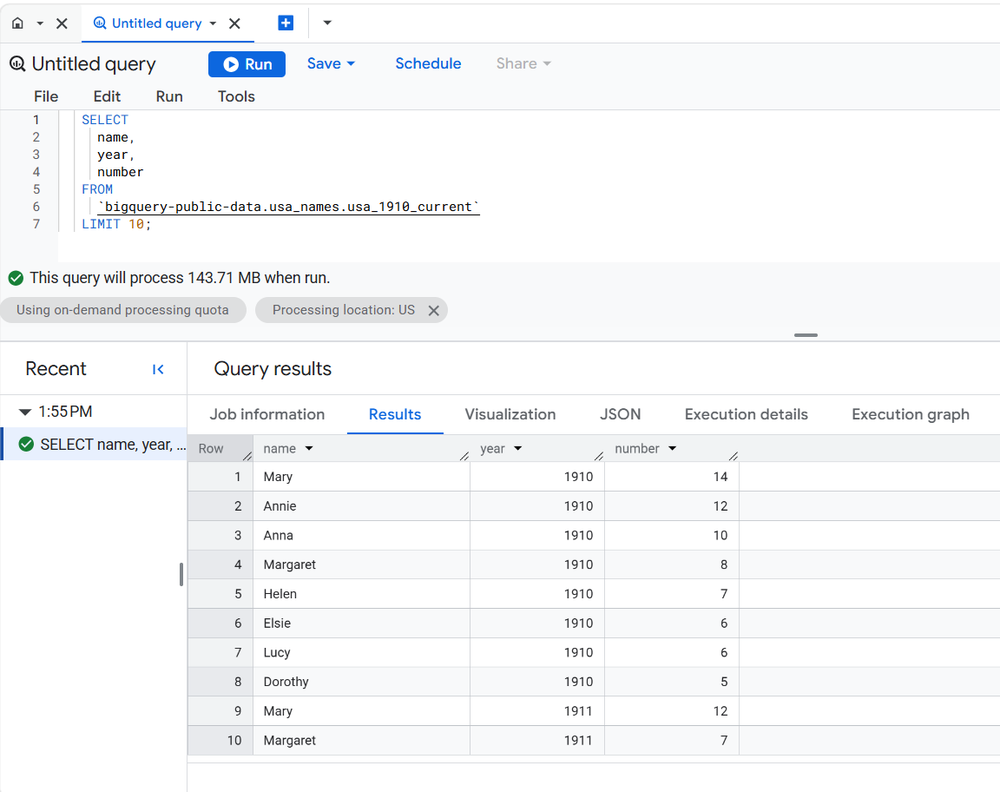
Good habit: in BigQuery, you pay for the columns you scan, not the rows you see. Listing only the columns you need is the single best way to save your free allowance. Avoid SELECT *.
Query 2: Filter Rows With WHERE
In BigQuery SQL, WHERE keeps only the rows that match a condition.
SELECT
  state,
  year,
  number
FROM
  `bigquery-public-data.usa_names.usa_1910_current`
WHERE
  name = 'Emma'
LIMIT 20;
What it does: returns only rows where the name is Emma.
Remember: text values go inside single quotes, and they are case-sensitive, so 'emma' won’t match 'Emma'.
Query 3: Combine Conditions With AND / OR
SELECT
  name,
  gender,
  number
FROM
  `bigquery-public-data.usa_names.usa_1910_current`
WHERE
  state = 'CA'
  AND year = 2020
LIMIT 20;
What it does: shows names given to babies in California in 2020.
Use AND when both conditions must be true, and OR when either can be true. For a range, use BETWEEN, for example year BETWEEN 2000 AND 2010.
Query 4: Sort Results With ORDER BY
Sorting is how BigQuery SQL turns raw rows into a ranked list.
SELECT
  name,
  gender,
  number
FROM
  `bigquery-public-data.usa_names.usa_1910_current`
WHERE
  state = 'CA'
  AND year = 2020
ORDER BY
  number DESC
LIMIT 10;
What it does: shows the 10 most popular names in California in 2020.
DESC sorts from highest to lowest, and ASC (the default) sorts from lowest to highest.
Query 5: Add Up Values With SUM and GROUP BY
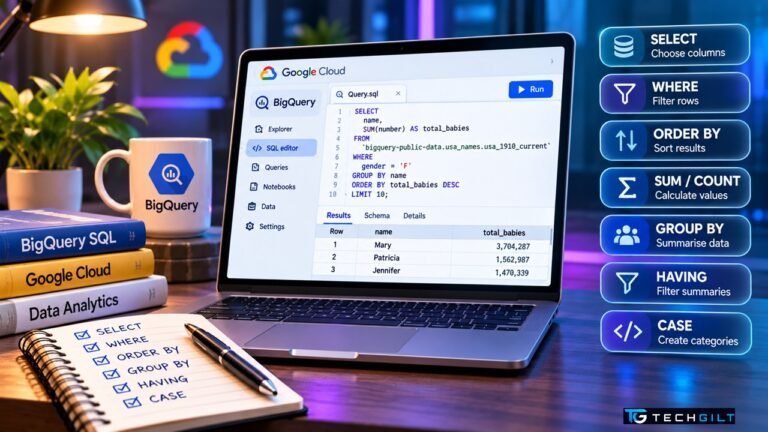
SELECT
  name,
  SUM(number) AS total_babies
FROM
  `bigquery-public-data.usa_names.usa_1910_current`
WHERE
  gender = 'F'
GROUP BY
  name
ORDER BY
  total_babies DESC
LIMIT 10;
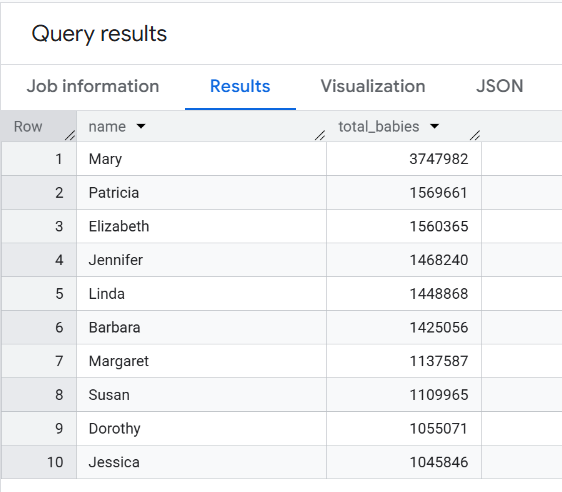
What it does: lists the 10 most popular girls’ names across all states and all years. In our run, Mary came first by a wide margin, with over 37 lakh babies.
GROUP BY name combines every row for the same name into one, and SUM(number) adds up the babies. AS total_babies gives the result column a readable name, called an alias.
Rule to remember: every column in SELECT must either be inside a calculation (like SUM) or be listed in GROUP BY.
Query 6: Count Things With COUNT and COUNT(DISTINCT)
Counting is one of the most common tasks in BigQuery SQL.
SELECT
  year,
  COUNT(DISTINCT name) AS unique_names
FROM
  `bigquery-public-data.usa_names.usa_1910_current`
GROUP BY
  year
ORDER BY
  year;
What it does: shows how many different names were used each year.
COUNT(*) counts rows, while COUNT(DISTINCT name) counts unique names. This is a quick way to see whether parents are choosing more varied names over time.
Query 7: Track a Trend Over Time
SELECT
  year,
  SUM(number) AS total_babies
FROM
  `bigquery-public-data.usa_names.usa_1910_current`
WHERE
  name = 'Liam'
GROUP BY
  year
ORDER BY
  year;
What it does: shows how popular the name Liam has been each year. The chart shows it was rare until the 1990s, then rose sharply after 2005.
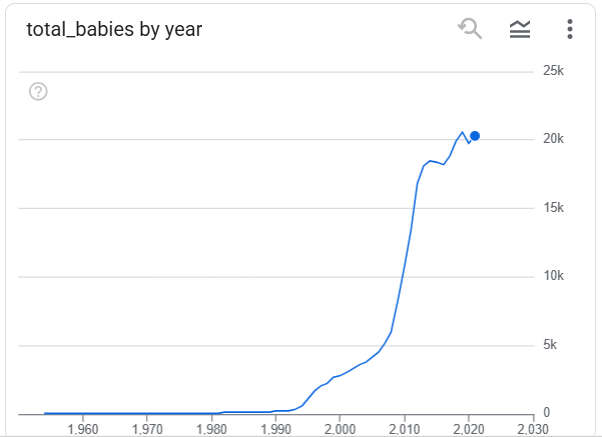
Try this: after running it, click the Visualization tab in the results panel to see the trend as a chart, with no extra tools needed.
Query 8: Filter Groups With HAVING
SELECT
  name,
  SUM(number) AS total_babies
FROM
  `bigquery-public-data.usa_names.usa_1910_current`
WHERE
  year >= 2010
GROUP BY
  name
HAVING
  SUM(number) > 100000
ORDER BY
  total_babies DESC;
What it does: lists names given to more than 1 lakh (100,000) babies since 2010.
WHERE vs HAVING:
WHEREfilters rows before grouping.HAVINGfilters groups after grouping.
This is one of the most common BigQuery SQL interview questions.
Query 9: Match Patterns With LIKE
When you don’t know the exact value, BigQuery SQL lets you search for a pattern.
SELECT
  name,
  SUM(number) AS total_babies
FROM
  `bigquery-public-data.usa_names.usa_1910_current`
WHERE
  name LIKE 'Ar%'
GROUP BY
  name
ORDER BY
  total_babies DESC
LIMIT 10;
What it does: finds the most popular names starting with “Ar”, such as Arthur or Aria.
%means “any number of characters”, so'Ar%'means starts with Ar.'%an'means ends with “an”.'%ri%'means contains “ri” anywhere.
Query 10: Create Categories With CASE
SELECT
  CASE
    WHEN year < 1950 THEN 'Before 1950'
    WHEN year < 2000 THEN '1950 to 1999'
    ELSE '2000 onwards'
  END AS era,
  SUM(number) AS total_babies
FROM
  `bigquery-public-data.usa_names.usa_1910_current`
WHERE
  name = 'Mary'
GROUP BY
  era
ORDER BY
  MIN(year);
What it does: groups the name Mary into three time periods and totals each one.
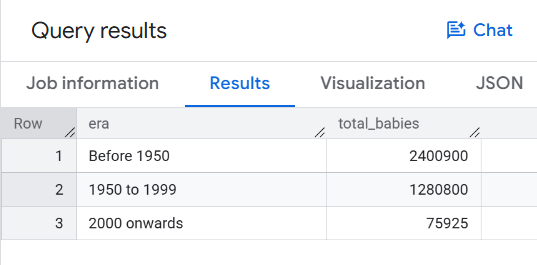
ORDER BY MIN(year) keeps the eras in time order instead of alphabetical order. CASE works like an if-then-else rule inside your query. It’s used everywhere in real data work, for example to label customers as “new” or “returning”, or transactions as “low”, “medium” or “high” value.
BigQuery SQL Cheat Sheet
| Command | Use it to | Example |
|---|---|---|
SELECT | Choose columns | SELECT name, year |
WHERE | Filter rows | WHERE state = 'TX' |
AND / OR | Combine conditions | WHERE year = 2020 AND gender = 'F' |
ORDER BY | Sort | ORDER BY number DESC |
LIMIT | Show fewer rows | LIMIT 10 |
SUM / COUNT | Calculate | SUM(number) |
GROUP BY | Summarise by a column | GROUP BY name |
HAVING | Filter groups | HAVING SUM(number) > 1000 |
LIKE | Match patterns | WHERE name LIKE 'A%' |
CASE | Create categories | CASE WHEN ... THEN ... END |
Tips to Practise BigQuery SQL Within the Free Limits
According to Google Cloud, the sandbox gives you 1 TB of query processing per month and a 10 GB storage limit, and tables you create expire after 60 days. To make your allowance last:
- Check the query validator (top right of the editor) before every run. It tells you how much data the query will process.
- Select only the columns you need. Never use
SELECT *on large tables. - Don’t rely on
LIMITto save data. It shortens the results, but BigQuery may still scan the whole column. - Use the Preview tab on a table to look at sample rows for free.
Common BigQuery SQL Mistakes Beginners Make
- Using double quotes for text: in BigQuery SQL, use single quotes for text values, as in
'Emma'. Backticks are for table names. - Forgetting GROUP BY: if you use
SUMorCOUNTwith other columns, those columns must be inGROUP BY. - Using WHERE instead of HAVING to filter totals.
- Mistyping the table name: copy the full path, including the backticks:
`bigquery-public-data.usa_names.usa_1910_current`.
What to Learn Next in BigQuery SQL
Once you’re comfortable with these 10 queries, the next BigQuery SQL topics are:
- JOINs: combining two tables
- Date functions: working with dates and times
- Window functions: rankings and running totals
- Creating your own tables: uploading a CSV file to the sandbox
We’ll cover these in the next parts of this BigQuery series.
Frequently Asked Questions
Is BigQuery SQL different from normal SQL?
BigQuery uses GoogleSQL, which follows standard SQL. If you know basic SQL from MySQL or another database, most of it works the same way. Small differences include using backticks around table names.
Can I practise BigQuery SQL for free?
Yes. The BigQuery sandbox is free and needs no credit card. It includes 1 TB of query processing per month, and you can practise on Google’s free public datasets.
Why can’t I run INSERT or UPDATE in the sandbox?
The BigQuery sandbox doesn’t support data manipulation (DML) statements such as INSERT, UPDATE and DELETE. To use them, you need to upgrade by adding a billing account.
What is the difference between WHERE and HAVING?
WHERE filters individual rows before grouping, while HAVING filters the grouped results after GROUP BY.
How long does it take to learn BigQuery SQL?
With daily practice, most beginners can learn the basics in this guide within one or two weeks. JOINs and window functions usually take a few more weeks.
Conclusion
BigQuery SQL is easier to learn than it looks. With just 10 commands, SELECT, WHERE, AND/OR, ORDER BY, LIMIT, SUM, COUNT, GROUP BY, HAVING, LIKE and CASE, you can answer real questions from millions of rows of data. Practise each query in the free BigQuery sandbox, change the names, years and states to explore on your own, and always check the query validator before you run anything. Master these basics, and you’ll be ready for JOINs and window functions, the next step towards a career in data analytics and data engineering on Google Cloud.
My take: I believe BigQuery SQL is one of the most valuable skills for anyone who wants a career in data analytics or data engineering, especially on Google Cloud. The best way to learn SQL is not by memorising commands, but by practising with real-world datasets and solving practical problems. That’s why this tutorial uses Google’s public datasets and the free sandbox, building one concept at a time. Once learners are comfortable with these fundamentals, the next step is JOINs, CTEs, window functions and more advanced analytical queries. Consistent hands-on practice is what turns SQL knowledge into real-world capability. I would conclude by saying: “Don’t just learn SQL commands; learn how to turn data into meaningful decisions.”
Over to You
Which of these 10 BigQuery SQL queries did you find most useful? Try changing one of them and share what you discovered in the comments below.