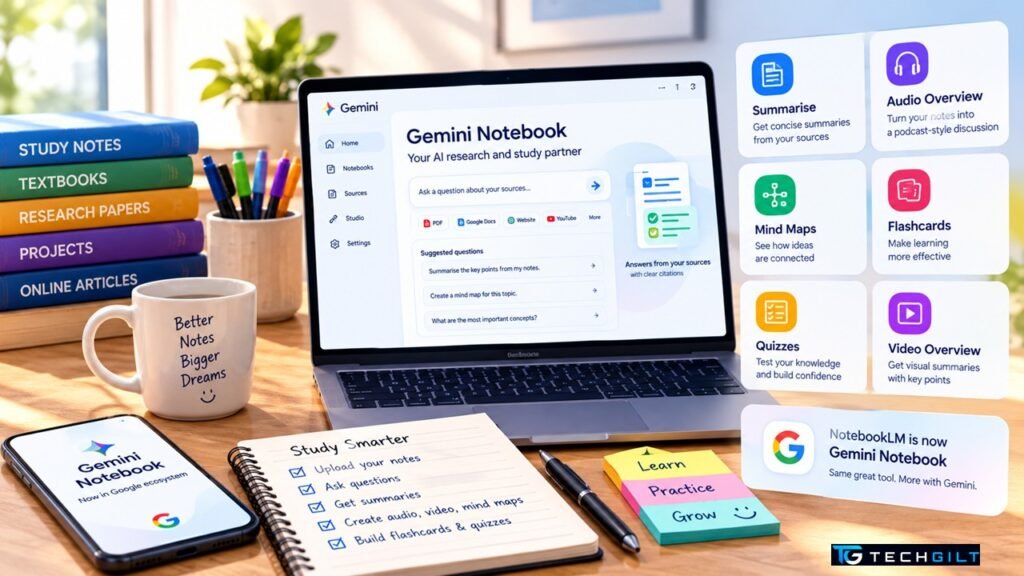
A step-by-step guide to NotebookLM, now called Gemini Notebook: upload your notes, ask questions, and turn them into podcasts, mind maps, flashcards and quizzes to study smarter
Most AI chatbots answer from everything they learned on the internet, which is why they sometimes make things up. NotebookLM works differently: it answers only from the documents you give it, and shows you exactly where each answer came from. That makes it one of the most useful free AI tools for students, teachers and professionals. Upload your class notes, a textbook chapter or a long report, and it can summarise it, answer your questions, and even turn it into a podcast, a mind map, flashcards or a quiz. In this guide, we explain how to use NotebookLM step by step, with practical study ideas for Indian students and working professionals.
Quick Answer
NotebookLM, renamed Gemini Notebook by Google on July 16, 2026, is a free AI research and study tool that works with your own sources, such as PDFs, Google Docs, websites and YouTube videos. To use it: go to notebooklm.google (it now redirects to the Gemini Notebook site), sign in with a Google account, create a notebook, add your sources, and then ask questions. Answers come with citations pointing to the exact part of your source. You can also generate Audio Overviews (podcast-style summaries), Video Overviews, Mind Maps, Flashcards, Quizzes and Reports.
NotebookLM Is Now Gemini Notebook
On July 16, 2026, Google renamed NotebookLM to Gemini Notebook, according to the Google Workspace Updates blog. Here’s what that means for you:
- It’s the same product, with a new name and logo. Google’s announcement calls it “the same standalone product, now doing more across the Google ecosystem”.
- Old links still work and redirect automatically.
- Your notebooks now sync with the Gemini app.
- Most people still search for “NotebookLM”, so you’ll see both names for a while. In this guide, we use the familiar name.
Why NotebookLM Is Different From ChatGPT
| Gemini Notebook | General AI chatbots | |
|---|---|---|
| Where answers come from | Only your uploaded sources | Their training data and the web |
| Citations | Every answer links to your source | Often none, or general links |
| Best for | Studying, research, long documents | Writing, brainstorming, general questions |
| Risk of made-up facts | Lower, because it sticks to your sources | Higher |
Because it answers from your own material, it’s ideal for exam preparation, where you need answers from your syllabus, not the whole internet.
How to Use NotebookLM: Step by Step
Step 1: Open the website or app
Go to notebooklm.google in your browser, or install the Gemini Notebook app on Android or iPhone. Sign in with your Google account.
Step 2: Create a new notebook
Click Create new notebook. Think of a notebook as a folder for one subject or project, for example “Class 10 Science” or “AWS Certification”.
Step 3: Add your sources
Click Add sources and choose what to upload:
- PDF files: textbook chapters, notes, question papers
- Google Docs and Google Slides from your Google Drive
- Website links: articles or documentation pages
- YouTube links: it uses the video’s transcript
- Copied text: paste notes directly
According to Layer3 Labs, the free plan allows up to 50 sources per notebook, and each source can be very long.
Step 4: Read the automatic summary
Once your sources are added, it creates a short summary and suggests questions you can ask. This alone can save hours with a long document.
Step 5: Ask questions in the chat
Type questions in the chat box, such as:
- “Explain photosynthesis in simple words.”
- “What are the five most important points in chapter 3?”
- “Compare the two reports I uploaded. Where do they disagree?”
Each answer includes numbered citations. Click a number to see the exact passage in your source, so you can check it.
Step 6: Use the Studio tools
The Studio panel turns your sources into study materials:
| Tool | What it does | Best for |
|---|---|---|
| Audio Overview | A podcast-style conversation between two AI hosts about your sources | Revising while travelling or walking |
| Video Overview | A narrated video summary with visuals | Visual learners |
| Mind Map | A clickable diagram of topics and how they connect | Seeing the big picture of a chapter |
| Flashcards | Question-and-answer cards | Memorising facts and definitions |
| Quiz | Multiple-choice questions on your sources | Testing yourself before an exam |
| Reports | Study guides, briefing documents and summaries | Quick revision notes |
Google says Audio and Video Overviews are available in more than 80 languages, according to the Google blog. The free plan has daily limits on some Studio tools.
Button names and layouts may change slightly as Google rolls out the Gemini Notebook design.
6 Smart Ways to Use NotebookLM
- Board exam revision: upload NCERT chapters and ask for flashcards and a quiz on each one.
- Competitive exams: add UPSC or banking exam notes and ask it to list important facts, dates and definitions.
- Certification prep: upload official exam guides and documentation for AWS, Azure or Google Cloud certifications, then quiz yourself.
- Long reports at work: upload a policy document or annual report and ask for a one-page summary of key decisions.
- Learn from YouTube lectures: add lecture links and ask questions instead of rewatching hours of video.
- Revise on the go: generate an Audio Overview and listen during your commute.
Tips to Get Better Answers
- One notebook per subject: mixing unrelated sources makes answers less focused.
- Use good-quality sources: the tool is only as accurate as what you upload.
- Ask specific questions: “List the causes of the 1857 revolt with page references” works better than “tell me about 1857”.
- Always click the citations to check important answers.
- Combine with good prompting: the same prompt techniques that work for ChatGPT work here too. See our prompt guide, linked below.
Limits and Privacy
- It doesn’t know what’s not in your sources. If your notes are incomplete, so are the answers.
- AI can still misread sources, so check important facts, especially for exams.
- Free plan limits: there are daily limits on some features, such as Audio Overviews. Paid Google AI plans offer higher limits.
- Privacy: don’t upload confidential office documents, Aadhaar, PAN, bank statements or other sensitive personal information to any AI tool.
Frequently Asked Questions
Is NotebookLM free?
Yes. It has a free plan for anyone with a Google account. Paid Google AI plans offer higher usage limits and extra features.
Is NotebookLM the same as Gemini Notebook?
Yes. Google renamed NotebookLM to Gemini Notebook on July 16, 2026. It’s the same product, and old NotebookLM links redirect automatically.
What files can I upload?
You can add PDFs, Google Docs, Google Slides, website links, YouTube links and copied text.
Can it make flashcards and quizzes?
Yes. The Studio panel can create flashcards, quizzes, mind maps, reports, and audio and video overviews from your sources.
Is NotebookLM better than ChatGPT for studying?
For studying from your own syllabus, it is often better because it answers only from your sources and shows citations. ChatGPT is better for open-ended writing and brainstorming.
Conclusion
NotebookLM, now Gemini Notebook, turns your own notes and documents into a personal AI tutor. Create a notebook, add your sources, ask questions with citations, and use Studio tools such as Audio Overviews, Mind Maps, Flashcards and Quizzes to revise faster. It’s free to start, works with PDFs, Google Docs, websites and YouTube videos, and is especially useful for exam preparation and long reports. Just remember to use reliable sources, check important answers, and keep sensitive information out of any AI tool.

Biswaranjan Mishracloudskillsacademy9@gmail.comEdit Profile
My take: I believe NotebookLM is one of the most useful AI tools for students, educators and working professionals, because it turns ordinary documents into interactive learning resources. Instead of spending hours reading long PDFs or rewatching lectures, you can generate summaries, ask questions, and build mind maps, flashcards and podcast-style explanations. For educators, it’s an excellent way to make learning more engaging. However, the answers are only as good as the sources you provide, so always verify critical information. Used wisely, it can make learning more organised, personal and productive. I would conclude by saying: “Your notes contain knowledge; AI helps you turn that knowledge into understanding.”
Over to You
Have you tried it for studying or work? Which feature do you find most useful: Audio Overviews, Mind Maps or Quizzes? Share in the comments below.