What’s new in the Windows 11 2026 Update, and how to install it on your PC today
Windows 11 26H2 is officially here. Microsoft began rolling out the Windows 11 2026 Update on September 29, 2026, and the headline change is one that users have been asking for since 2021: you can finally move the taskbar to the top or sides of your screen again. The good news is that installing it is quick and painless for most PCs. Here’s what’s new, whether your PC qualifies, and exactly how to install it.
Quick Answer
Windows 11 26H2 is a free update for PCs running Windows 11 version 24H2 or 25H2. To get it, open Settings > Windows Update, turn on “Get the latest updates as soon as they’re available”, and click Download and install when 26H2 appears. It installs like a regular monthly update, with a small download and a single restart.
What’s New in Windows 11 26H2
This isn’t a dramatic redesign, but it fixes some of Windows 11’s most criticised limitations. The main changes are:
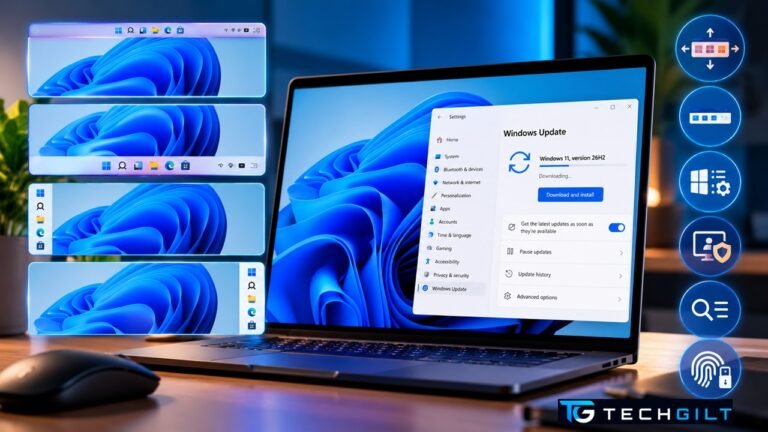
- A movable taskbar. You can place the taskbar at the bottom, top, left, or right of the screen. When it sits at the top, the Start menu and Search open downwards to match.
- A smaller taskbar option. A compact layout with smaller icons, useful on laptops with small screens.
- A more flexible Start menu. You can choose preset sizes and show or hide the Pinned, Recent, and All apps sections independently.
- A screen-sharing privacy setting. Hides your name and profile photo in the Start menu while you’re sharing your screen, handy for online meetings.
- Smarter Windows Search. Search now handles typos and partial app names better, labels whether each result is an app, setting, file, or web result, and lets you preview results without opening them.
- External fingerprint readers for Windows Hello. You can now sign in using a plug-in USB fingerprint sensor.
One thing to know: Microsoft delivers many new features gradually through monthly updates, so some of these may also appear on PCs still running 25H2, and not every feature may show up on day one.
Is Your PC Eligible?

Windows 11 26H2 is offered to PCs already running Windows 11 version 24H2 or 25H2. To check which version you have:
- Press Windows key + R on your keyboard
- Type winver and press Enter
- A small window shows your version, for example “Version 25H2”
If you’re on 24H2 or 25H2, you’re eligible. A few things to note:
- Windows 10 users need to move to Windows 11 first, and only if their PC meets Windows 11’s hardware requirements. Microsoft’s free PC Health Check app can tell you.
- PCs on version 26H1 (a special version shipped on some new devices) can’t upgrade directly to 26H2, because it’s built on a different Windows core.
- Safeguard holds: If Microsoft detects a known compatibility issue with your hardware or apps, it may temporarily hold the update back from your PC. If you don’t see 26H2, this may be why.
How to Install Windows 11 26H2
Before you start, save any open work and make sure your laptop is plugged in. Backing up important files is always a good habit before any major update.
Method 1: Windows Update (recommended)
This is the safest and easiest method for most people:
- Open Settings (press Windows key + I)
- Click Windows Update in the left menu
- Turn on “Get the latest updates as soon as they’re available”
- Click Check for updates
- When “Windows 11, version 26H2” appears, click Download and install
- Restart your PC when prompted
Because versions 24H2, 25H2, and 26H2 share the same underlying code, the download is small and the installation takes only a few minutes. Microsoft explains the details in its official Windows Experience Blog announcement.
Method 2: Windows 11 Installation Assistant
If Windows Update doesn’t show 26H2 yet, you can use Microsoft’s Windows 11 Installation Assistant, available from Microsoft’s official Windows 11 download page. Download it, run it, and follow the on-screen steps. Your files and apps are kept.
Microsoft generally recommends waiting for Windows Update to offer the update, since that means your PC has been checked for known issues first.
Method 3: Clean install from ISO (advanced)
Microsoft has also released official 26H2 ISO files. A clean install wipes your drive and starts fresh, so it’s best for advanced users setting up a new PC or fixing a badly misbehaving one. Back up everything first, as this method erases your files.
Which method should you choose?
| Method | Best for | Keeps your files and apps? | Difficulty |
|---|---|---|---|
| Windows Update | Almost everyone | Yes | Easy |
| Installation Assistant | When Windows Update hasn’t offered it yet | Yes | Easy |
| ISO clean install | New PC setup or major troubleshooting | No, erases the drive | Advanced |
How to Move the Taskbar After Updating
Once you’re on Windows 11 26H2, here’s how to try the most popular new feature:
- Right-click an empty area of the taskbar and choose Taskbar settings (or go to Settings > Personalization > Taskbar)
- Expand Taskbar behaviors
- Choose your preferred taskbar position: Bottom, Top, Left, or Right
To customise the Start menu, go to Settings > Personalization > Start, where you’ll find the size options, the section toggles, and the screen-sharing privacy setting.
Why This Update Matters
Installing Windows 11 26H2 also resets your support clock. Home and Pro editions get 24 months of security updates from the release, while Enterprise and Education editions get 36 months. Staying on a supported version is what keeps your PC protected against new security threats.
The first regular monthly security update for 26H2 is due on October 13, 2026, Microsoft’s next Patch Tuesday.
Also read: ChatGPT Hits 1 Billion Users
Also read: Google Play System Update
Frequently Asked Questions
Is Windows 11 26H2 free?
Yes. It’s a free update for all eligible Windows 11 PCs running version 24H2 or 25H2.
How long does the Windows 11 26H2 update take?
For most PCs it takes only a few minutes, similar to a monthly update, because it’s delivered as a small “enablement package” with a single restart.
Will updating delete my files?
No. Updating through Windows Update or the Installation Assistant keeps your files, apps, and settings. Only a clean install from an ISO erases your drive.
Why don’t I see Windows 11 26H2 in Windows Update?
Microsoft is rolling it out gradually, and some PCs may be on a temporary safeguard hold due to known compatibility issues. Turn on “Get the latest updates as soon as they’re available” and check again in a few days.
Can I upgrade from Windows 10 directly to 26H2?
Only if your PC meets Windows 11’s hardware requirements. Run Microsoft’s PC Health Check app to find out, then upgrade to Windows 11.
Conclusion
Windows 11 26H2 won’t transform your PC, but it brings back flexibility that many users felt was missing, especially the movable taskbar. Because it installs as quickly as a monthly update and resets your support period, there’s little reason to wait. For most people, Windows Update is the way to go: turn on the early-updates toggle, click Download and install, and restart.
Updating your phone too? See our guide to the Google Play System Update.
My take: I haven’t installed it yet. I checked using the steps above and found that my PC is on Windows 11 version 25H2, so it’s eligible. I do think 26H2 will add real value to the way we work with Microsoft products.
That said, I’d like Microsoft to do a better job of explaining its updates. A short, periodic summary of what recent updates changed, what’s coming next, and how each one actually helps us would go a long way. Most busy professionals simply click “Update” when the alert appears and never learn what changed in the background, or why.
I’d also like it to be much easier to ask for features. Microsoft does offer the Feedback Hub app in Windows (press Windows key + F) and a Feedback option in Office apps, but most people don’t know they exist. Ideally, every Microsoft product would show a simple, visible “Suggest a feature” option. For example, if I’m working on an Excel file and think “this would be so much easier if…”, I should be able to submit that idea in seconds, so Microsoft’s product teams know exactly what customers want. Let’s see how 26H2 helps us in our day-to-day work.
Over to You
Have you installed Windows 11 26H2 yet, and where will you put your taskbar? Share your thoughts in the comments below.