A step-by-step beginner’s guide to running your first SQL query in the BigQuery sandbox, with no credit card needed
The BigQuery sandbox is the easiest way to try Google Cloud’s data warehouse without spending a rupee. You don’t need a credit card or a billing account, and you can start querying real, large datasets in a few minutes. If you’re a student, a data analyst learning SQL, or a professional curious about cloud data engineering, this guide walks you through everything: setting up the sandbox, running your first query, reading the results, and understanding the limits.
Quick Answer
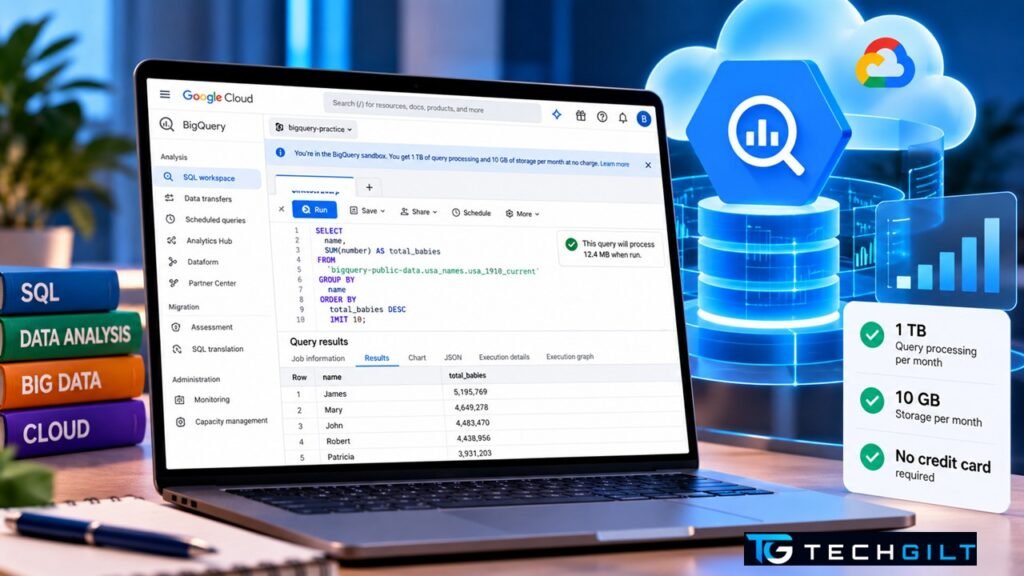
The BigQuery sandbox lets you use Google BigQuery free of charge, with no credit card. You get 1 TB of query processing and 10 GB of storage every month. To start, sign in to the Google Cloud console with a Google account, open BigQuery, create a project, and run a query against one of Google’s free public datasets. The main catch: tables you create expire automatically after 60 days.
What Is BigQuery?
BigQuery is Google Cloud’s fully managed, serverless data warehouse. In plain terms, it’s a place to store very large amounts of data and analyse it using SQL, the standard language for working with data.
What makes BigQuery special:
- No servers to manage: You don’t install or configure anything. You just write SQL.
- Very fast on huge data: It can scan billions of rows in seconds.
- Pay for what you use: Outside the free limits, you’re charged mainly for the data you store and the data your queries scan.
That last point is why the sandbox is so useful for learning: you get a generous free allowance without ever giving payment details.
BigQuery Sandbox vs Free Tier vs Free Trial
Google Cloud offers three ways to try BigQuery at no cost, and beginners often mix them up:
| Option | Credit card needed? | What you get | Best for |
|---|---|---|---|
| BigQuery sandbox | No | 1 TB queries + 10 GB storage per month; tables expire after 60 days | Learning and practice |
| Free tier | Yes (billing account) | Same monthly free limits, but tables don’t expire | Small personal projects |
| Free trial | Yes | $300 of credit for all Google Cloud services, for a limited period | Exploring Google Cloud more widely |
For learning SQL and exploring BigQuery, the sandbox is all you need.
Step 1: Open the BigQuery Console
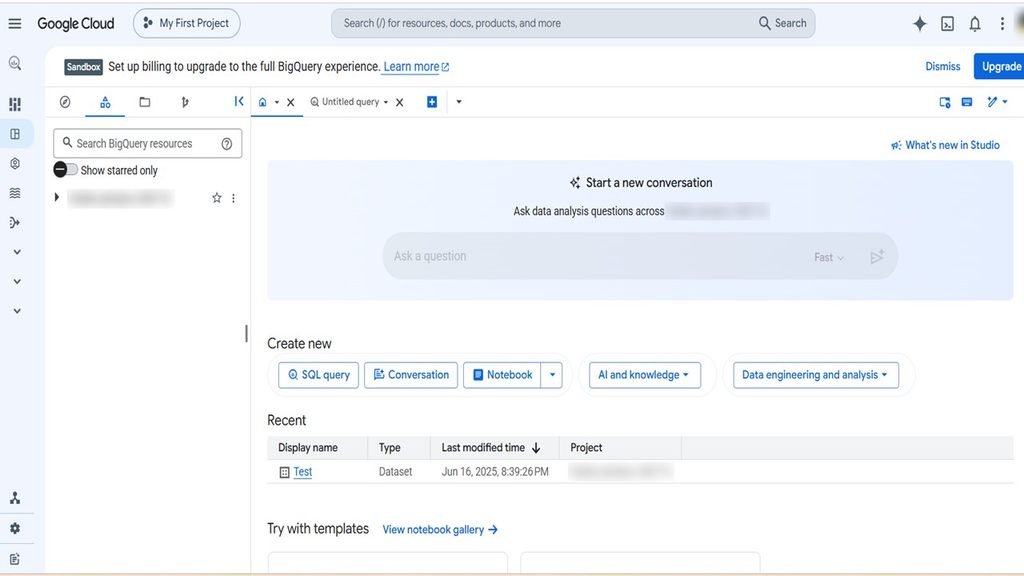
- Sign in to your Google account (any Gmail account works).
- Go to console.cloud.google.com/bigquery.
- If it’s your first visit, accept the Google Cloud terms of service.
You don’t need to enter any payment details. If a screen asks you to start a free trial or add a billing account, you can skip it to stay in the sandbox.
Step 2: Create a Project
Everything in Google Cloud lives inside a project, a container that holds your datasets, queries, and settings.
- Click Create Project (or the project selector at the top of the page, then New Project).
- Give it a simple name, for example
bigquery-practice. - Click Create and wait a few seconds.
Once the project is ready, you’ll see a sandbox notice at the top of the BigQuery page. That confirms you’re in free sandbox mode.

Step 3: Find a Free Public Dataset
You don’t need your own data to start. Google hosts many free public datasets, ranging from weather and census data to Wikipedia and GitHub activity, under a project called bigquery-public-data.
For this guide, we’ll use a well-known beginner dataset: US baby names, which records how many babies were given each name every year since 1910. It’s small, simple, and perfect for a first query.
Step 4: Write and Run Your First Query
- Click the + button (or Compose new query) to open a new query tab.
- Paste this SQL into the editor:
SELECT
  name,
  SUM(number) AS total_babies
FROM
  `bigquery-public-data.usa_names.usa_1910_current`
GROUP BY
  name
ORDER BY
  total_babies DESC
LIMIT 10;
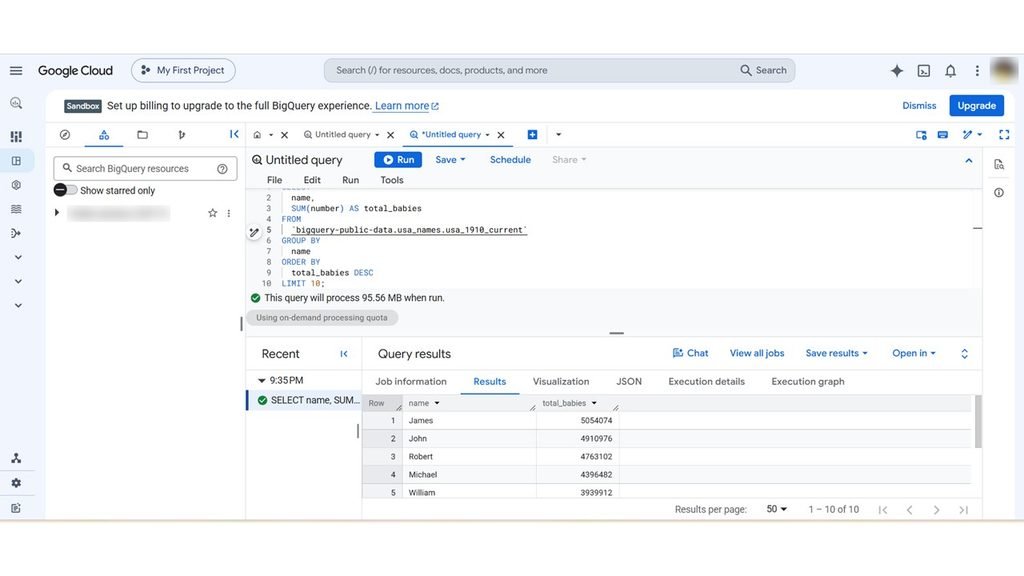
- Before running it, look at the query validator near the top right of the editor. It shows a message like “This query will process 95.56 MB when run.” This is how much data the query will scan, and it’s what counts towards your 1 TB monthly allowance.
- Click Run.
In a second or two, the Query results panel shows the 10 most popular baby names in the dataset. When I ran it, James came out on top with over 5 million babies, followed by John, Robert, Michael and William. The query processed only 95.56 MB, which is less than 0.01% of the 1 TB monthly free allowance.
What the query does, line by line
| Part | Meaning |
|---|---|
SELECT name, SUM(number) AS total_babies | Show each name and the total number of babies given that name |
FROM ...usa_1910_current | Read from the public baby names table |
GROUP BY name | Combine all years for the same name into one row |
ORDER BY total_babies DESC | Sort from the most popular to the least |
LIMIT 10 | Show only the top 10 |
Step 5: Save Your Query
To reuse your query later, click Save (or Save query) above the editor, give it a name such as top-baby-names, and click Save. You’ll find it under your project in the Explorer panel on the left.
BigQuery Sandbox Limits You Should Know
The sandbox is generous, but it has a few limits. According to Google Cloud’s official sandbox documentation:
- 1 TB of query processing and 10 GB of active storage per month, the same as the BigQuery free tier.
- Tables, views, and partitions expire automatically after 60 days. Don’t use the sandbox for data you need to keep permanently.
- Some features aren’t available in the sandbox. Google’s documentation lists exactly which ones.
- All standard BigQuery quotas and limits still apply.
When you’re ready for more, you can upgrade by adding a billing account. You’ll still get the same free monthly allowance, and your tables will no longer expire.
Tips to Stay Within the Free Limits
- Check the query validator before every run. If a query will scan hundreds of GB, rethink it.
- Select only the columns you need. BigQuery charges by the columns scanned, so
SELECT *on a huge table can use up your allowance quickly. - Remember that
LIMITdoesn’t reduce data scanned. It only shortens the results you see; BigQuery may still read the whole table. - Use the table Preview tab to look at sample data instead of running
SELECT *queries.
Also read: AWS vs Azure vs GCP Free Tier
Frequently Asked Questions
Is the BigQuery sandbox really free?
Yes. It’s free and requires no credit card or billing account. You get 1 TB of query processing and 10 GB of storage each month at no cost.
What happens after 60 days in the BigQuery sandbox?
Tables, views, and partitions you create expire automatically after 60 days. Your saved queries and your access to public datasets aren’t affected. To keep tables permanently, upgrade by adding a billing account.
Do I need to know SQL to use BigQuery?
Basic SQL helps, but you can start with simple queries like the one in this guide and learn as you go. BigQuery uses standard SQL.
Can I upload my own data to the BigQuery sandbox?
Yes, within the 10 GB storage limit, for example by uploading a CSV file. Just remember the 60-day expiry.
Will I be charged if I go over the free limits?
In the sandbox, there’s no billing account, so you can’t be charged. Queries that would exceed the free limits simply won’t run until the next month or until you upgrade.
Conclusion
The BigQuery sandbox removes the biggest barrier to learning cloud data engineering: cost. In under 10 minutes and without a credit card, you can query real datasets with the same engine that large enterprises use. Start with public datasets, keep an eye on the query validator, and you’ll stay comfortably within the free limits while you build real SQL and cloud skills.
My take: BigQuery is a fully managed, cost-effective, highly scalable and serverless data warehouse on Google Cloud. From a data engineer’s perspective, I use it to extract data and spot patterns across large tables simply by running SQL queries.
One thing I always emphasise to beginners: be very careful with the queries you run in the BigQuery editor. Never use SELECT * on large tables, because it scans every column and can exhaust your entire free allowance very quickly. And don’t rely on LIMIT to save you: adding LIMIT 10 only shortens the results you see, while BigQuery may still scan the whole table. Instead, select only the columns you need, and use the table’s Preview tab when you just want to look at sample rows.
Another great thing about Google Cloud is the sandbox itself. Learners and students can work with real public datasets without needing a credit card, and as a trainer, it lets me deliver hands-on sessions using those same public datasets.
Over to You
Have you tried the BigQuery sandbox yet, and which public dataset would you like to explore first? Share your thoughts in the comments below.