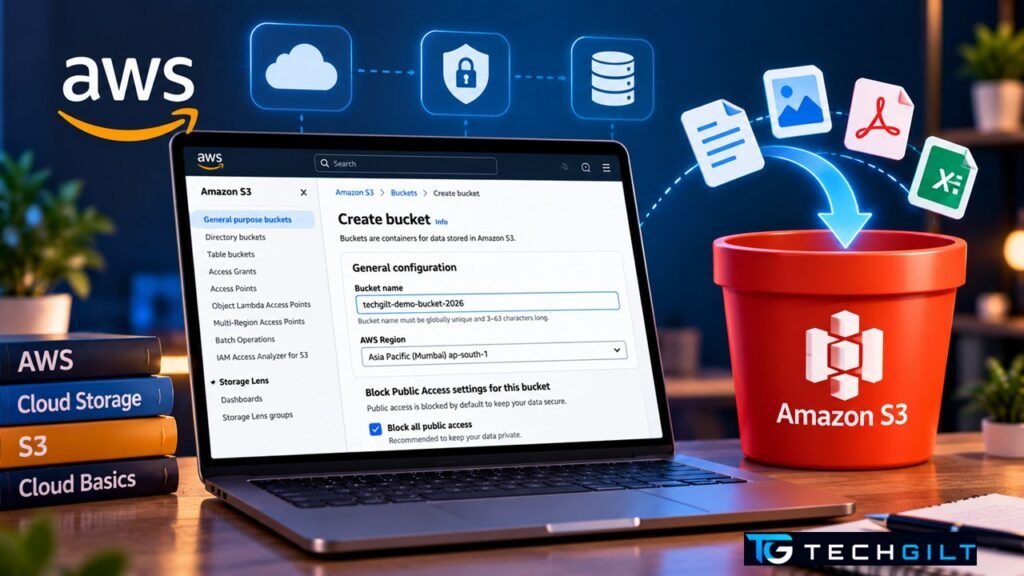
A beginner’s step-by-step guide to creating your first S3 bucket, uploading a file, and keeping it secure and low-cost
Creating an S3 bucket is one of the first things anyone learning AWS should do. Amazon S3 (Simple Storage Service) is AWS’s storage service. Almost every AWS project, from hosting a website to building a data lake, uses S3 somewhere. The good news is that creating your first S3 bucket takes just a few minutes, and the default settings are already secure. This guide walks you through creating a bucket, uploading a file, understanding the key settings, and cleaning up afterwards so you don’t pay for anything you don’t need.
Quick Answer
To create an S3 bucket, sign in to the AWS Management Console, open S3, choose a Region, then click Create bucket. Enter a globally unique name (lowercase letters, numbers and hyphens, 3–63 characters), keep Block all public access turned on, leave default encryption as it is, and click Create bucket. You can then upload files to it straight away.
What Is an S3 Bucket?
An S3 bucket is a container for storing files in AWS. Each file you store is called an object, and every object lives inside a bucket.
A few things make S3 special:
- Virtually unlimited storage: You don’t set a size limit. You just upload and pay for what you store.
- Very high durability: AWS designs S3 so data is extremely unlikely to be lost.
- Used everywhere: Backups, website files, application data, logs, and data lakes for analytics all commonly sit in S3.
Think of a bucket as a top-level folder in the cloud, with its own name, location and security settings.
Before You Start
You’ll need:
- An AWS account. New accounts get free credits on AWS’s free plan, which is enough for practice like this.
- About 10 minutes.
- A small test file to upload, such as a text file or an image.
Make sure you’re signed in as a user with permission to use S3. If you created the account yourself, AWS recommends using an IAM user or IAM Identity Center rather than the root user for everyday tasks.
Step 1: Open the S3 Console and Choose a Region
- Sign in to the AWS Management Console.
- In the search bar at the top, type S3 and open it.
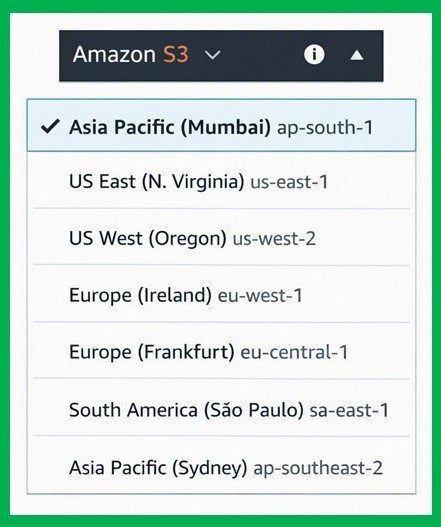
- In the top-right corner, check the Region. Choose one close to you. For readers in India, Asia Pacific (Mumbai) or Asia Pacific (Hyderabad) are good choices.
The Region matters because your data is stored there, and you can’t change a bucket’s Region after it’s created.
Step 2: Click Create Bucket and Name It
- In the left menu, choose General purpose buckets.
- Click Create bucket.
- Under Bucket name, enter a name, for example
techgilt-demo-bucket-2026.
S3 bucket names must follow these rules:
| Rule | Example |
|---|---|
| 3 to 63 characters long | my-first-bucket |
| Lowercase letters, numbers, hyphens (and periods, though they’re discouraged) | data-2026 ✔ Data_2026 ✘ |
| Must start and end with a letter or number | bucket1 ✔ -bucket ✘ |
| Must be unique, not just in your account but across AWS | Add your name or a date to avoid clashes |
Bucket names can’t be changed later and appear in file URLs, so don’t include anything sensitive. Newer versions of the console may also offer a choice of bucket namespace. If you see it, beginners can keep the default.
Step 3: Review the Security Settings
This is the most important step, and the defaults are already safe:
- Object Ownership: Keep ACLs disabled (recommended). Your account owns every file in the bucket, which keeps permissions simple.
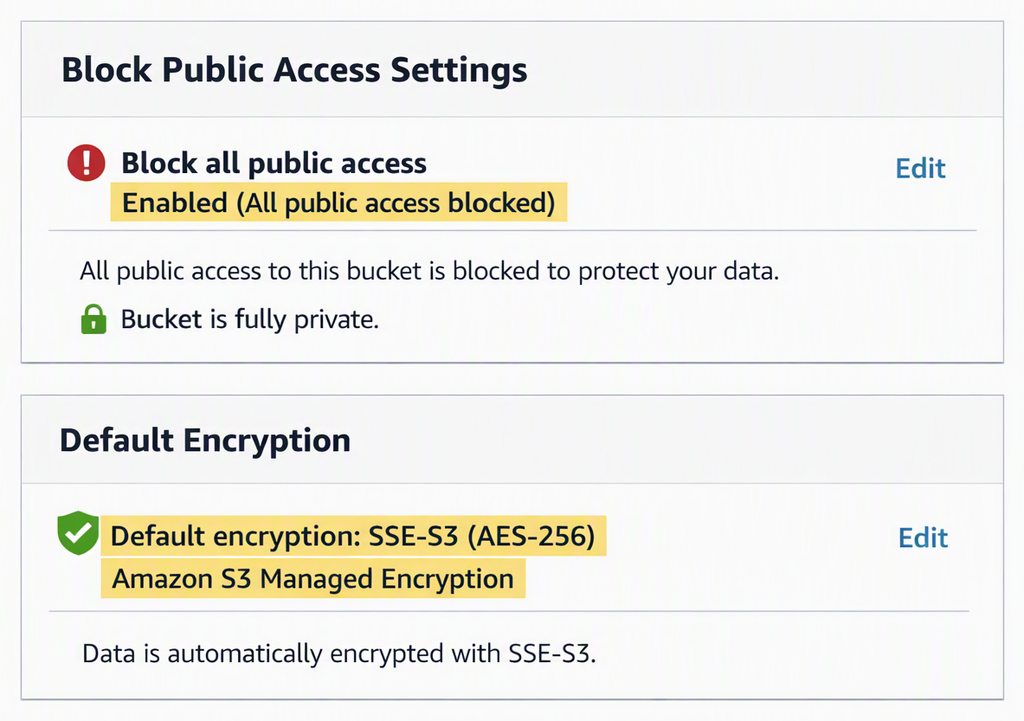
- Block Public Access settings for this bucket: Keep Block all public access ticked. This makes sure nobody on the internet can see your files unless you deliberately change it. Many real-world data leaks happened because public access was switched on by mistake.
- Bucket Versioning: Leave it Disabled for practice. Versioning keeps old copies of files when you overwrite them, which is useful for important data but uses extra storage.
- Default encryption: Leave it as Server-side encryption with Amazon S3 managed keys (SSE-S3). Every file is encrypted automatically at no extra cost.
Step 4: Create the Bucket
Scroll to the bottom and click Create bucket. Within seconds, your new bucket appears in the General purpose buckets list.
These settings and defaults match Amazon’s official guide to creating a general purpose bucket.
Step 5: Upload Your First File
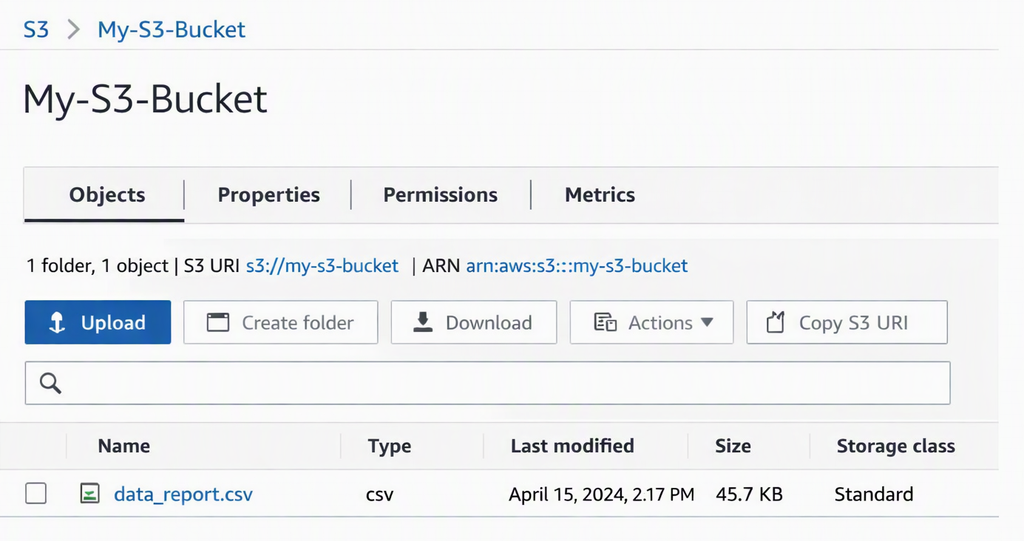
- Click your bucket’s name to open it.
- Click Upload, then Add files, and choose your test file.
- Click Upload at the bottom.
When the upload finishes, click the file name to see its details, including its size and its S3 URI (for example s3://techgilt-demo-bucket-2026/test.txt), which is how other AWS services refer to it.
Because public access is blocked, the file’s Object URL won’t open for anyone browsing the internet. That’s expected, and it’s what you want for private data.
Step 6: Clean Up to Avoid Charges
When you’ve finished practising, delete what you created:
- Open the bucket, select your file(s), and click Delete. Type permanently delete to confirm.
- Go back to the bucket list, select your bucket, and click Delete. Type the bucket name to confirm.
S3 won’t let you delete a bucket that still contains files, which is why you empty it first. Storing a few small files costs very little, but getting into the habit of cleaning up protects you from surprise bills later.
S3 Bucket Best Practices for Beginners
- Never turn off Block Public Access unless you have a specific reason, such as hosting a public website, and you understand the risk.
- Use clear, consistent bucket names, such as
project-environment-purpose(for exampletechgilt-dev-logs). - Set a budget alert in AWS Billing before experimenting, so you’re notified if costs appear.
- Don’t upload sensitive personal data to practice buckets.
- Delete test buckets when you’re done.
Also read: AWS vs Azure vs GCP Free Tier
Frequently Asked Questions
Is creating an S3 bucket free?
Creating an S3 bucket itself is free. You pay for the storage, requests and data transfer you use. For new accounts, this usage is covered by AWS’s free plan credits, and small practice buckets cost very little.
Why does my S3 bucket name say it already exists?
S3 bucket names in the default global namespace must be unique across all AWS accounts, not just yours. Add something unique, such as your name, project or a date.
Can I make my S3 bucket public?
Yes, but only by turning off Block Public Access and adding a bucket policy. For most use cases, especially as a beginner, keep buckets private.
Can I change the Region or name of an S3 bucket later?
No. Both are fixed at creation. To change them, create a new bucket and copy the data across.
What’s the difference between a bucket and a folder in S3?
A bucket is the top-level container with its own settings. “Folders” inside a bucket are just a way of organising object names using prefixes, such as reports/2026/file.csv.
Conclusion
Creating an S3 bucket is quick, and AWS’s secure defaults do most of the work: public access is blocked, ACLs are disabled, and every file is encrypted automatically. Focus on choosing the right Region and a good name, keep Block Public Access on, and always clean up after practice. Once you’re comfortable, S3 becomes the foundation for websites, backups, data lakes and much more.
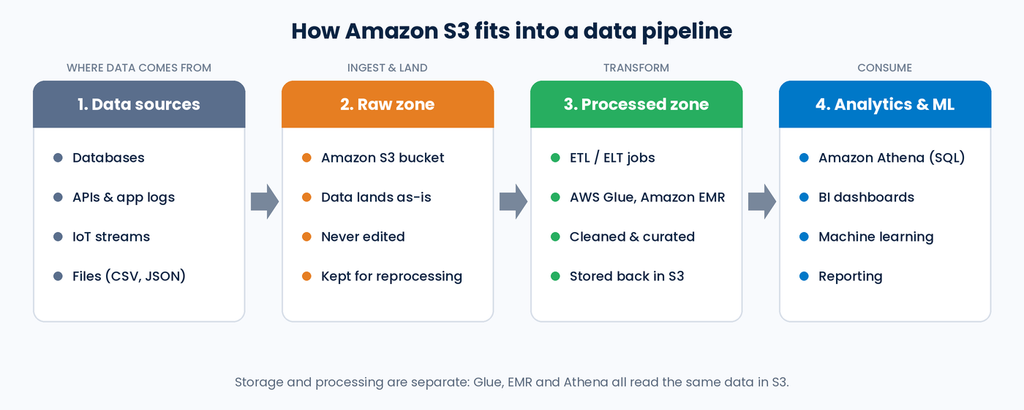
My take: In the pipelines I design on AWS, S3 is the first stop: the landing zone, or “raw zone”, where every dataset arrives before any transformation. In the data analytics world, it’s the natural home for raw data. It’s a simple but powerful layer because storage and processing are kept separate, which lets services like AWS Glue, Amazon EMR and Amazon Athena process the same data independently.
With trainees, I insist on a few simple habits without exception. Never switch off Block Public Access by accident, and understand the risk before ever changing it. Always delete the test buckets created for lab activities once the lab is done. And for real projects, use S3 Lifecycle policies so that old data is moved to cheaper storage or deleted automatically instead of piling up. My goal is simple: everyone I train should use S3 safely and manage data properly from day one.
Over to You
What will you store in your first S3 bucket, or have you already built something with S3? Share your thoughts in the comments below.